Using Office 365 SharePoint Online with Rights Management Services to Replace Departmental Share Drives
In today’s office environment, we often share information like reports, presentations and minutes among colleagues. We have been taught how to connect to the departmental share drive through a network drive letter to store and access files in a traditional file folder structure. This works quite well assuming we know where the files are kept in the nested folder structure. Searching for documents containing specific words/phrases or created by a particular person can be a daunting task when there are lots of files and folders. Thanks to the powerful features in SharePoint Online (SPO) such as versioning, search, encryption and Rights Management Services (RMS), file sharing becomes easier and more user-friendly.
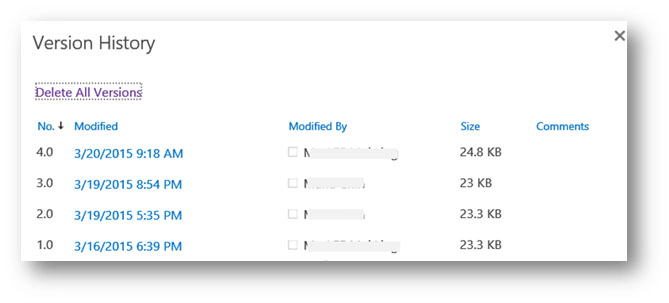
Imagine you have been working with several co-workers on a report and you forgot where the latest version was kept. Was it saved in a local hard disk, attached in an email or saved in a shared drive? The versioning feature in SharePoint is here to help you. When versioning is enabled, you can see when a file was changed and who changed it, view a previous version without overwriting your current version or even restore a previous version to become the new current version.
By moving to the cloud, data security is always one of the major concerns. SPO secures traffic with Secure Socket Layer over Hypertext Transfer Protocol (HTTPS) to provide encrypted communication and protection of privacy and integrity of the exchanged data. You can access documents stored in a SPO team site anywhere through a web browser on desktops or a wide range of compatible mobile devices with an internet connection. A team site provides a secure location for colleagues to share data and collaborate in projects more effectively. You can get work done from virtually anywhere because you are no longer tied to a corporate network or the computer in your office.
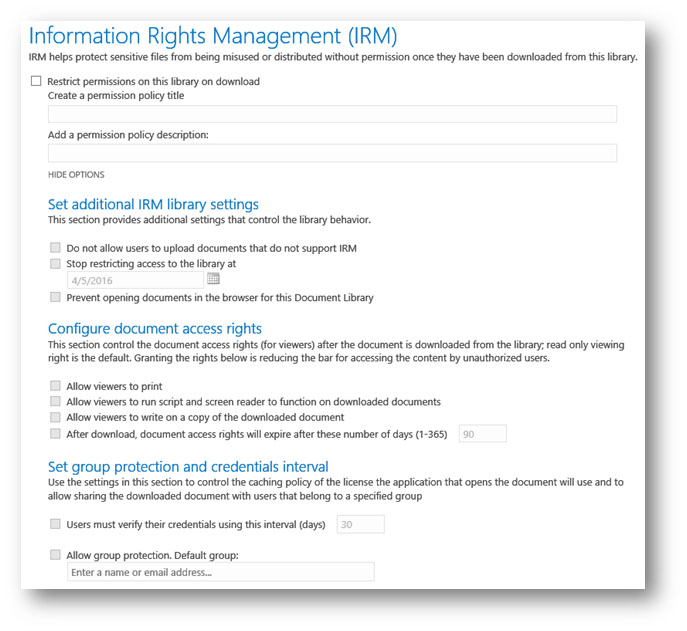
Rights Management Services (RMS) in Office 365 plays an important role in the protection of sensitive information from unauthorised access and assigning usage restrictions. It uses encryption, identity, and authorisation policies to safeguard sensitive files in SPO. Unlike standard access controls, RMS protection stays with the files so you remain in control of the data even when it is shared with others. Regardless of where the files are stored, RMS does not access the content of the protected data. Information Rights Management (IRM), which relies on RMS, can be enabled in SPO at the document library level rather than on individual files. This ensures a consistent level of protection for an entire set of files. IRM encrypts the downloaded files, limits the actions that users can take on the files and the programs that are allowed to decrypt these files. Currently it is applicable to Word, Excel, PowerPoint and PDF files. A site owner can set the IRM options to the kind of protection needed (e.g. disallow printing and copying information out of a document or make a downloaded document no longer available when it expires) and apply to document libraries. When traditional corporate boundary is fading with a growing number of mobile workforce, persistent protection of IRM-protected documents becomes increasingly significant. IRM can therefore help enforce corporate policies that govern the use and dissemination of confidential or proprietary information.
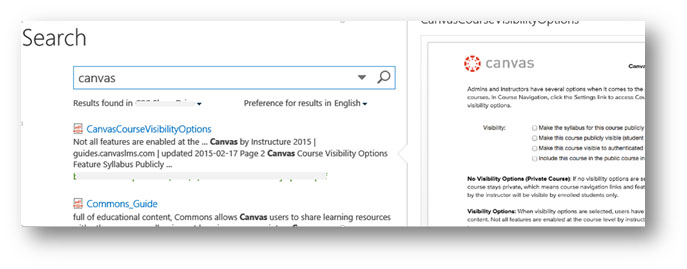
To benefit from the powerful features in SPO and maintain competitiveness, two departments have already deployed SPO team sites to replace their departmental share drives. As can be seen, SPO has added advantages over on-premise file server although both store files in a common location and provide access to users depending on the permission levels. Furthermore, colleagues with the right access privilege can now search for key words by indexed content within a document or the file name, or by hovering over previews of documents in the search results to find what they need quickly.
Office files such as Word or Excel can be viewed and edited directly in a web browser using the built-in Office Online Web Apps. The ability to perform basic editing without needing the desktop application enriches collaboration capability. By storing documents online, users can also enjoy the new features and improvements that are released to SPO regularly. If your department is considering using SPO for departmental drive sharing, please contact the Computing Services Centre (CSC) for a discussion and demonstration session.